Listen to Text: How to Proofread Writing and Study by Ear
Listening to text read aloud helps writers catch typos, missing words, and awkward phrasing that visual skimming misses. By using browser-based text-to-speech, your device converts written sentences into audio via the Web Speech API, allowing you to audit pacing, tone, and sentence flow without uploading documents to Zynocode servers.
Learning how to listen to text is one of the most effective ways to catch hidden errors in your writing and absorb dense information without eye strain. When we spend hours drafting an article, essay, or client report, our eyes grow accustomed to the words on the screen. The brain fills in missing words and skims right past clumsy sentences. Developers, writers, and students can audit drafts directly in their browser using our free Text to Speech Reader.
Why Listen to Text? The Benefits of Proofreading by Ear
Visual proofreading suffers from familiarity. Because you already know what you intended to say, your eyes glide over omissions, dropped prepositions, and accidental repetitions like "the the".
When you listen to text read aloud, you are forced to process every word in strict sequence. The voice reads exactly what is on the page, so a missing word, a doubled word or a clumsy sentence is much easier to hear than to see.
Listening aloud helps writers catch several categories of errors:
- Missing or Dropped Words: Your eyes easily skip over missing "in", "at", or "that", but an auditory reader exposes the gap clearly.
- Accidental Repetitions: Hearing the same adjective or noun used three times across consecutive sentences sounds immediately jarring. To find every repeated word at once, run the draft through a Duplicate Word Finder.
- Run-On Sentences and Poor Pacing: If a sentence exhausts the reader before reaching a punctuation mark, you know it needs splitting.
- Clumsy Syntax and Jargon: Sentences that look acceptable in print often sound stiff and convoluted when spoken aloud.
Before feeding your text into a speech reader, running your draft through a Word Counter helps measure reading duration, while a Readability Checker flags complex sentences that might disrupt listening comprehension.
How Browser-Based Text to Speech Works: The Web Speech API
Modern web browsers feature built-in speech synthesis engines accessible via standard JavaScript interfaces. According to official documentation from MDN Web Docs, "The Web Speech API enables you to incorporate voice data into web apps."
The engine responsible for turning written strings into spoken audio is the SpeechSynthesis interface. MDN explains: "The SpeechSynthesis interface of the Web Speech API is the controller interface for the speech service; this can be used to retrieve information about the synthesis voices available on the device, start and pause speech, and other commands besides."
Browser Speech Synthesis Pipeline:
[ User Pastes Text ]
        │
        ▼
[ SpeechSynthesisUtterance ]  ──► Configures rate, pitch, and chosen voice
        │
        ▼
[ window.speechSynthesis.speak() ]
        │
        ▼
[ Local or Remote Speech Engine ]  ──► Audio Output via Speakers or Headphones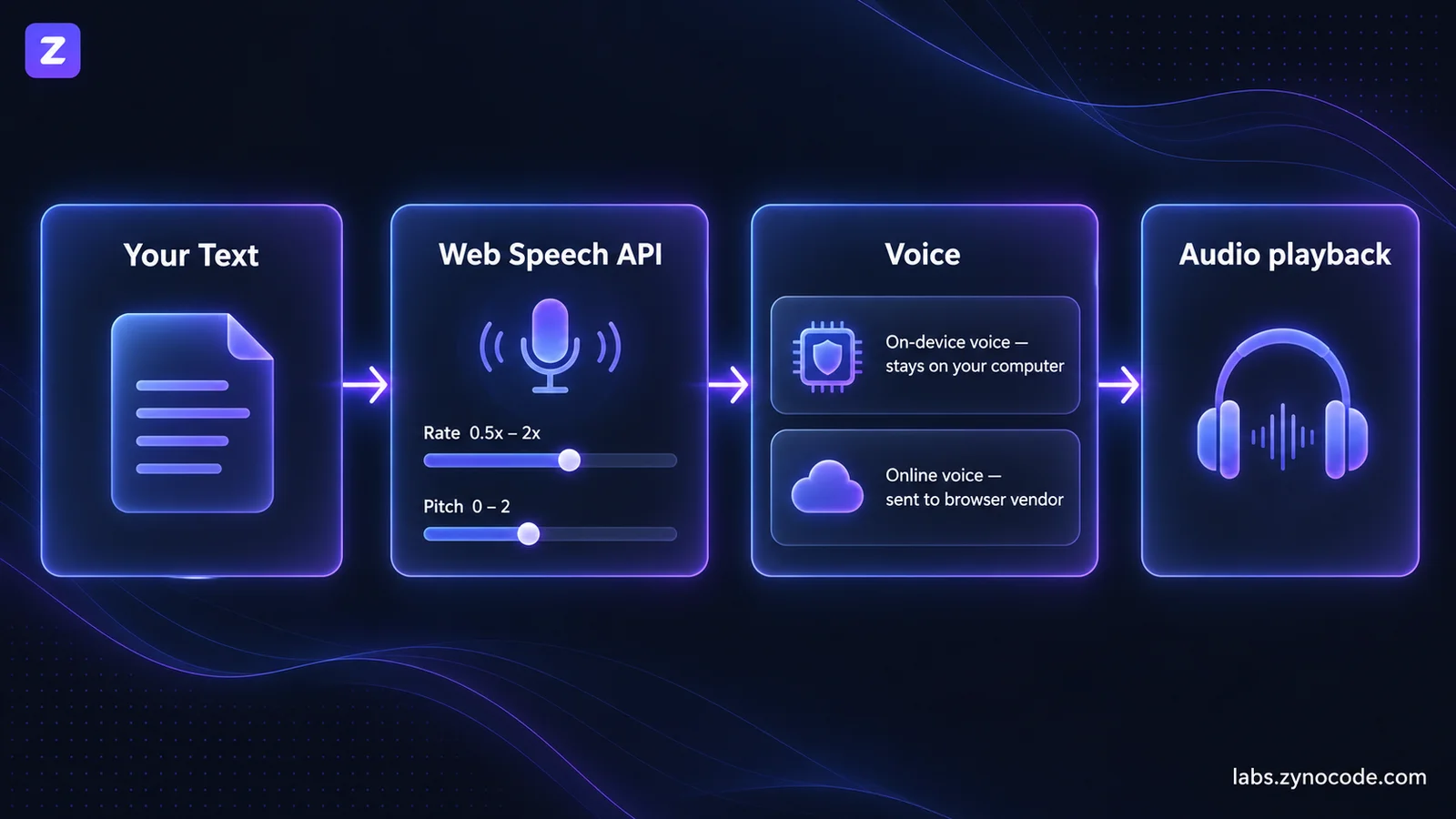
Local On-Device Voices vs. Remote Network Voices
Privacy in browser text-to-speech depends heavily on the specific voice selected. Our tool itself operates entirely on the client side: Zynocode never transmits, inspects, or logs your text on our servers.
However, web browsers provide two distinct categories of voices:
- Local System Voices: Built into your operating system or local browser installation. Synthesis runs completely on your machine.
- Remote Network Voices: Cloud-synthesized voices, such as Google-branded voices in Chrome or "Online (Natural)" voices in Microsoft Edge. These stream your text to third-party vendor servers to generate higher-fidelity audio.
To identify whether a voice processes text locally, the Web Speech API exposes a dedicated flag. According to MDN Web Docs, "The localService read-only property of the SpeechSynthesisVoice interface returns a boolean value indicating whether the voice is supplied by a local speech synthesizer service (true), or a remote speech synthesizer service (false)."
When reviewing confidential contracts, proprietary code, or personal drafts, always pick an operating system voice (such as standard Microsoft OneCore voices on Windows or Apple system voices on macOS) to guarantee that your data never leaves your device.
Understanding Voice Availability by Browser and Operating System
The available voice options depend on your browser and operating system:
- Windows: Provides Microsoft SAPI and OneCore voices (such as Microsoft David, Zira, or Mark).
- macOS and iOS: Provides Apple system voices (such as Samantha, Daniel, or Alex).
- Google Chrome: Bundles Google cloud synthesis voices alongside local operating system voices.
- Linux: Relies on local speech dispatchers such as eSpeak or festival.
When you open a speech tool, the browser asynchronously fires the voiceschanged event, loading whichever languages and accents exist on your operating system.
Key Use Cases for Listening to Text Online
Auditory reading serves a diverse spectrum of practical applications across daily digital workflows.
1. Proofreading and Copy Editing
Every professional editor knows the value of reading drafts aloud. Hearing your prose highlights awkward transition phrases, passive voice traps, and rhythmic monotony. A reader allows you to sit back and listen without straining your voice or getting distracted by typing.
2. Accessibility and Dyslexia Support
For individuals with reading difficulties, dyslexia, or visual impairments, text-to-speech technology is indispensable. The W3C Web Accessibility Initiative (WAI) highlights that accessibility features like speech synthesis are "essential for some, useful for all". Many readers also find it easier to follow along when they can hear the text and see it at the same time.
3. Language Learning and Pronunciation Practice
Non-native speakers learning English or other languages can paste unfamiliar paragraphs into a speech reader to hear standard pronunciation, syllable stresses, and sentence intonation. Adjusting the speech speed allows learners to break down complex words phonetically.
4. Reviewing Study Material and Combating Screen Fatigue
Staring at screens for long stretches can cause digital eye strain and fatigue. Transferring lecture notes, textbook chapters, or research articles into an audio reader lets you rest your eyes while maintaining your study schedule. For lengthy research papers, you can first condense long sections using an online Text Summarizer before listening to the essential highlights.
Step-by-Step: How to Listen to Text with the Zynocode Labs Reader
Our browser-based Text to Speech Reader provides a focused, simple interface for reading text aloud in your browser.
Here is how to use the tool:
- Paste or Enter Text: Type or paste your document directly into the "Text to Read" input area.
- Select an Available Voice: Open the "Voice" dropdown menu. The tool lists every voice your browser offers, defaulting to an English voice if available. Voices that send text to an online service are marked "online", so you can pick an on-device voice for private drafts.
- Adjust Speed (Rate): Use the speed slider to set your desired pace between 0.5x and 2.0x in 0.1 increments. A 1.0x setting matches natural conversational speech.
- Fine-Tune Pitch and Volume: Adjust the pitch slider (0.0 to 2.0) to raise or lower vocal tone, and the volume slider (0% to 100%) to suit your surroundings.
- Control Playback: Click "Play" to start listening. If you need to pause and take notes, click "Pause" and return later with "Resume". Click "Stop" to halt speech entirely.
- Reset: Click "Clear" to stop active synthesis and empty the text box for your next draft.
While it reads, the tool highlights each word as it is spoken (with voices that report word positions, which most on-device voices do). It also shows the word count and an estimated listening time at your chosen speed, lets you open a .txt or .md file instead of pasting, and keeps your text in this browser so it is still there if you reload the page.
Our tool runs entirely within your browser and transmits zero text to Zynocode servers. Keep in mind that some web browsers (like Chrome) can occasionally pause or truncate very long continuous utterances, so breaking extensive articles into manageable sections or paragraphs ensures seamless playback.
Best Practices for Natural-Sounding Speech Synthesis
Browser speech engines interpret plain text literally. To get the cleanest, most natural auditory playback from synthetic voices, apply these editorial formatting tips:
- Use Standard Punctuation: Commas trigger brief breathing pauses, semicolons indicate deliberate rhythm breaks, and periods signal full stops. If a synthetic voice sounds breathless or rushes through sentences, insert missing commas to restore cadence.
- Spell Out Ambiguous Abbreviations: Some synthesis engines struggle with informal acronyms or uncommon unit abbreviations. Expanding "approx." to "approximately" or "w/" to "with" eliminates awkward mispronunciations.
- Format Numbers and Currencies Clearly: Write numbers with clear context. While most engines pronounce "$50" as "fifty dollars", writing out complex fractions or decimal ranges often prevents misinterpretations.
- Separate Distinct Ideas into Paragraphs: Adding empty lines between major thoughts gives the speech controller a brief natural pause, making dense topics easier to digest.
Auditory Proofreading vs. Visual Editing: Comparison Table
Both visual and auditory review methods offer distinct advantages. Combining them creates an airtight editing workflow:
| Feature & Criterion | Silent Visual Reading | Reading Aloud Yourself | Text-to-Speech Playback |
|---|---|---|---|
| Catches Dropped Words | Low (brain auto-fills) | Moderate | High (ear hears missing syntax) |
| Spots Duplicate Words | Low (skims over 'the the') | Moderate | High (you hear the repeated word) |
| Detects Homophones | High ('their' vs 'there') | Low (sound identical) | Low (sound identical) |
| Monitors Sentence Flow | Moderate | High | High (awkward phrasing is easy to hear) |
| Vocal Fatigue | None | High (tiring for long texts) | None (effortless listening) |
| Review Speed | Variable (skimming risks) | Fixed by speaking pace | Adjustable (0.5x to 2.0x rate slider) |
| Data Privacy | Private | Private | Zero Zynocode server storage; on-device if using local OS voices |
Common Mistakes to Avoid When Listening to Text
To maximize the benefits of text-to-speech tools, avoid these frequent stumbling blocks:
- Setting the Speed Too High During Proofreading: While listening at 1.5x or 1.8x works well for casual articles, high speeds make subtle grammatical slips blur together. Stick to 1.0x or 1.1x when proofreading important documents.
- Relying Solely on Audio for Spelling Checks: Synthetic voices pronounce words phonetically. They cannot warn you if you typed "principal" instead of "principle" or "affect" instead of "effect". Always combine auditory listening with a spelling check.
- Ignoring Tone and Voice Suitability: Different synthetic voices handle sentence inflection differently. Experiment with different voices and pitch settings in your dropdown until you find a timbre that sounds pleasant for long listening sessions.
- Skipping Punctuation in Drafts: If you omit closing quotation marks, hyphens, or question marks, the speech synthesizer cannot apply proper rising and falling vocal intonation.
Summary
Auditory proofreading bridges the gap between what you intended to write and what actually appears on the page. By converting your prose into spoken audio, you bypass visual blind spots, detect rhythm flaws, and polish your prose with minimal effort.
Ready to audit your next draft? Paste your writing into our free Text to Speech Reader, choose a local voice for sensitive content, adjust your playback speed, and experience the clarity of listening to your text. For more guides on writing analysis and SEO optimization, explore our developer and writer guides.
Frequently asked questions
Why should I listen to text instead of reading silently?+
When you read silently, your brain anticipates words and unconsciously auto-corrects mistakes like double words or missing prepositions. Hearing text read aloud forces you to process each word in sequence, exposing awkward cadence, repetitive vocabulary, and grammar blunders.
Why do available voices differ across browsers and computers?+
Browser-based text readers use the speech engines installed on your operating system or provided by your browser. For example, Windows loads Microsoft OneCore voices, macOS loads Apple system voices, and Chrome provides Google speech voices.
Does using an online text reader compromise the privacy of my drafts?+
Our tool sends zero text to Zynocode servers—everything executes through your browser. However, certain browser voices (such as Chrome's Google voices or Edge's Online Natural voices) transmit audio requests to browser vendor servers. To ensure complete on-device privacy for sensitive drafts, select a local operating system voice.
What is the best playback speed for proofreading by ear?+
A playback speed between 1.0x and 1.2x is a helpful starting suggestion for proofreading. Slower paces give your ear time to catch misspellings and punctuation errors, while speeds above 1.5x are better suited for rapid scanning of familiar material.
Can text to speech replace visual proofreading entirely?+
No. Text-to-speech readers are exceptional at catching syntax flaws, dropped words, and clunky phrasing, but homophones such as 'there', 'their', and 'they're' sound identical. Combine auditory proofreading with a visual scan for optimal accuracy.

Prashant Sharma · Founder & Technology Strategist
Prashant Sharma is the founder of Zynocode IT Solutions, specializing in web development, SEO tooling and generative AI workflows.