Photo and Signature Size for Online Forms: Requirements and Compression Guide
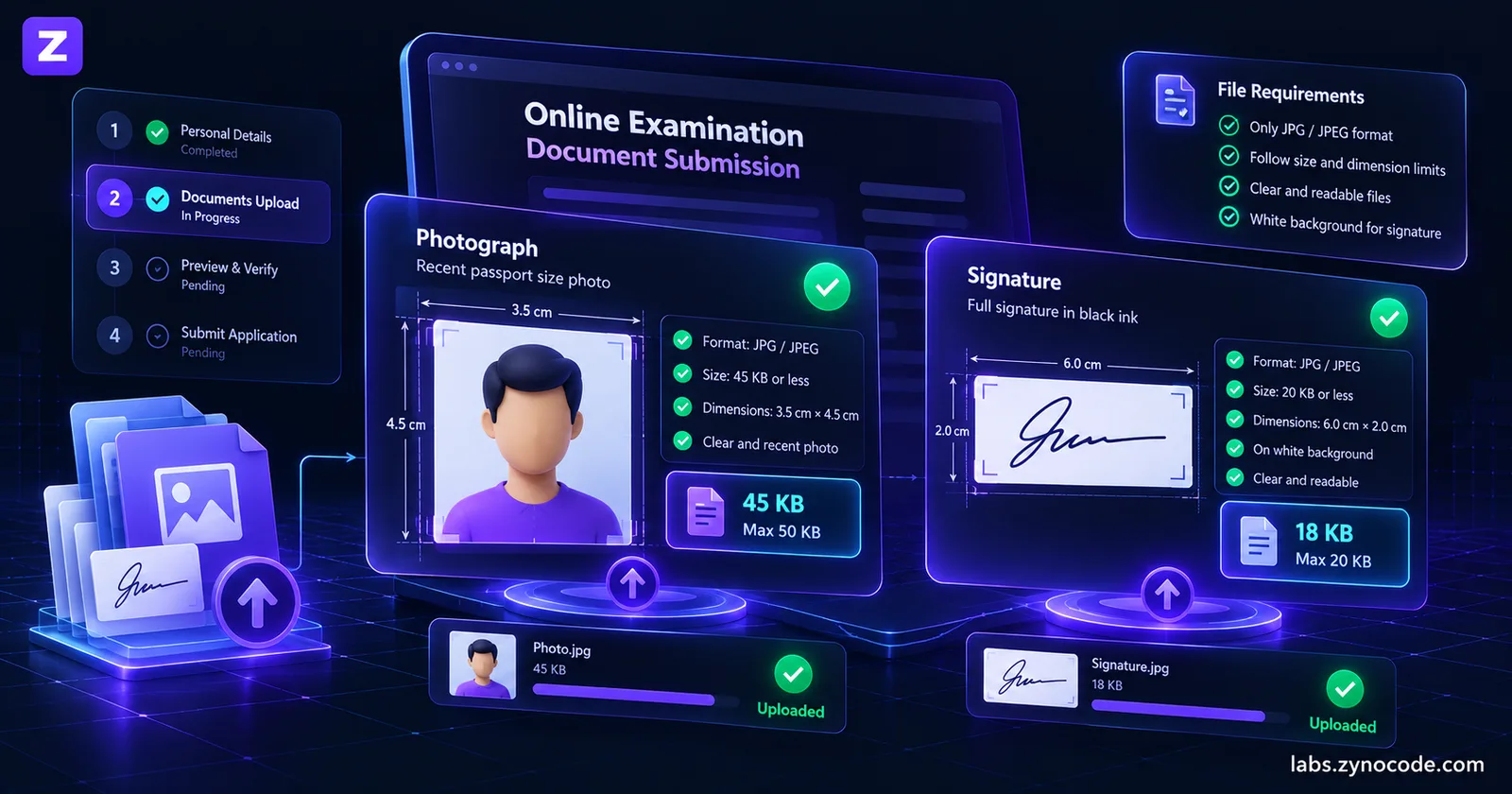
Online recruitment forms like IBPS require photographs between 20KB and 50KB (200×230 pixels) and signatures between 10KB and 20KB (140×60 pixels) in JPEG format. To prevent upload rejection, crop empty white margins first, adjust pixel dimensions to the official notice, and compress client-side a few kilobytes below the ceiling.
Uploading documents to Indian recruitment and entrance portals is often the most stressful step of submitting an application. If you have ever applied for examinations managed by the Staff Selection Commission (SSC), Union Public Service Commission (UPSC), or Institute of Banking Personnel Selection (IBPS), you have likely encountered strict upload errors. Understanding the exact photo and signature size for online forms ensures your application passes automated portal screening without last-minute rejections.
Modern recruitment portals use automated validation scripts that enforce hard ceilings on file size in kilobytes (KB), pixel dimensions (width and height), aspect ratios, and file formats. Submitting raw smartphone photos directly causes instant upload failure because high-resolution camera sensors produce multi-megabyte files.
In this practical guide, we detail official document requirements from verified examination notifications, explain why compression failures happen, and walk through how to crop, resize, and compress your photograph and signature to 50 KB or 20 KB using private, browser-based tools.
Official Photo and Signature Size Requirements by Portal
Government and banking portals publish document specifications in their official examination notifications. The table below lists exact specifications extracted from official candidate guidelines and examination notices:
| Examination / Portal | Document Type | Allowed File Size | Required Dimensions | Dedicated Tool & Preset | Official Notice Source |
|---|---|---|---|---|---|
| Staff Selection Commission (SSC CGL 2024 notice) | Scanned Signature | 10 to 20 KB | About 6.0 cm (W) × 2.0 cm (H) | SSC CGL Signature Tool | SSC CGL Notice (Clause 9.6, p.13) |
| Staff Selection Commission (SSC CGL 2024 notice) | Live Photo | Live camera capture only | Camera rectangle | SSC Live Photo Guide | SSC CGL Notice (Clause 9.3, p.12) |
| Union Public Service Commission (UPSC CSE) | Passport Photograph | 20 KB to 200 KB | ≥75% face coverage (no pixel dims in notice) | UPSC Photo Tool | UPSC Upload Instructions (p.2) |
| Union Public Service Commission (UPSC CSE) | Triple Signature | 20 KB to 100 KB | 350 to 500 pixels (3 vertical signatures) | UPSC Signature Tool | UPSC Upload Instructions (p.5) |
| NEET (UG) 2026 — NTA | Passport Photograph | 10 KB to 200 KB | 80% face coverage (no pixel dims in bulletin) | NEET Photo Tool | NEET (UG) 2026 Bulletin (p.16, 21) |
| NEET (UG) 2026 — NTA | Scanned Signature | 10 KB to 100 KB | Plain white paper (no dims in bulletin) | NEET Signature Tool | NEET (UG) 2026 Bulletin (p.16, 21) |
| NEET (UG) 2026 — NTA | Fingers & Thumb Impressions | 10 KB to 200 KB | Full hand impressions | NEET Thumb Tool | NEET (UG) 2026 Bulletin (p.16, 21) |
| JEE (Main) 2026 — NTA | Passport Photograph | 10 KB to 200 KB | 80% face coverage (no pixel dims in bulletin) | JEE Main Photo Tool | JEE Main 2026 Bulletin (Step 2, p.10) |
| JEE (Main) 2026 — NTA | Scanned Signature | 10 KB to 100 KB | Plain white paper (no dims in bulletin) | JEE Main Signature Tool | JEE Main 2026 Bulletin (Step 2, p.10) |
| Banking Personnel (IBPS CRP PO/MT-XVI) | Photograph Image | 20 KB to 50 KB | 200 × 230 px (preferred) | IBPS Photo Tool | IBPS PO Notice (Annexure III, p.36) |
| Banking Personnel (IBPS CRP PO/MT-XVI) | Scanned Signature | 10 KB to 20 KB | 140 × 60 px (black ink, no capitals) | IBPS Signature Tool | IBPS PO Notice (Annexure III, p.36) |
| Banking Personnel (IBPS CRP PO/MT-XVI) | Left Thumb & Declaration | 20–50 KB (Thumb) / 50–100 KB (Dec) | 240×240 px (Thumb) / 800×400 px (Dec) | IBPS Thumb & Declaration Tool | IBPS PO Notice (Annexure III, p.37) |
| State Bank of India (SBI PO 2024-25 notice) | Photograph Image | 20 KB to 50 KB | 200 × 230 px (preferred) | SBI PO Photo Tool | SBI Advt CRPD/PO/2024-25/22 (Annexure II, p.14) |
| State Bank of India (SBI PO 2024-25 notice) | Signature & Thumb | 10–20 KB (Sig) / 20–50 KB (Thumb) | 140×60 px (Sig) / 240×240 px (Thumb) | SBI PO Signature Tool | SBI Advt CRPD/PO/2024-25/22 (Annexure II, p.14) |
| Common University Entrance Test (CUET UG 2026) | Photograph & Signature | 10–200 KB (Photo) / 10–50 KB (Sig) | White background (no pixel dims in bulletin) | CUET Photo & Sig Tool | CUET (UG) 2026 Bulletin (Step 2, p.10) |
| Graduate Aptitude Test (GATE 2026) | Passport Photograph | 5 KB to 600 KB | 200×260 to 530×690 px (60–70% face) | GATE Photo Tool | GATE 2026 Brochure (Sec 6.7, p.18) |
| Graduate Aptitude Test (GATE 2026) | Scanned Signature | 3 KB to 300 KB | 250×80 to 580×180 px (aspect 1:2.75 to 3.75) | GATE Signature Tool | GATE 2026 Brochure (Sec 6.7, p.18) |
| Central Teacher Eligibility Test (CTET) | Photo & Signature | 10–100 KB (Photo) / 3–30 KB (Sig) | 3.5×4.5 cm (Photo) / 3.5×1.5 cm (Sig) | CTET Photo & Sig Tool | CTET Bulletin (Step 4, p.3, 31) |
| Common Admission Test (IIM CAT 2026) | Photo & Signature | ≤ 80 KB (Photo) / ≤ 80 KB (Sig) | Within 1200×1200 px / within 80×35 mm | CAT Photo & Sig Tool | CAT 2026 Guide (Sec 1.3, p.10) |
Requirements change with every notification. Always check the official notice for your exam before uploading.
Why Online Application Portals Reject Uploads
When an upload fails, portal error messages are notoriously vague. Understanding what the portal backend checks will help you prevent errors:
- Strict Kilobyte Boundaries: Server validation checks exact file size in bytes. Most portals treat 1 KB as 1,024 bytes, but some validation scripts calculate 1 KB as 1,000 bytes. If a portal enforces a maximum limit of 50 KB, any file exceeding the byte limit is rejected. Setting your compression target a few kilobytes below the threshold (such as 45 KB) ensures safe clearance.
- Dimension Constraints: Many portals verify pixel dimensions via image header metadata before saving files. If a portal mandates 140 × 60 pixels, uploading a file with different proportions triggers a dimension validation error.
- Format and Color Space Issues: Most portals accept standard 8-bit baseline JPEG files (
.jpgor.jpeg). Uploading PNG files, CMYK print files, or formats like WebP or HEIC from smartphones causes rejection on older portal server stacks. - Under-Sized Files: Portals enforce minimum limits alongside maximums (such as 10 KB or 20 KB). If aggressive compression shrinks your file below the minimum, the server script blocks it because over-compressed files often lack legible facial features or signature strokes.
- Blurry Signatures and Uneven Lighting: Taking a photo of a signature in dim lighting creates a gray background and faint ink strokes. Unclear signatures risk rejection during document verification.
Step-by-Step: Prepare and Compress Photos and Signatures
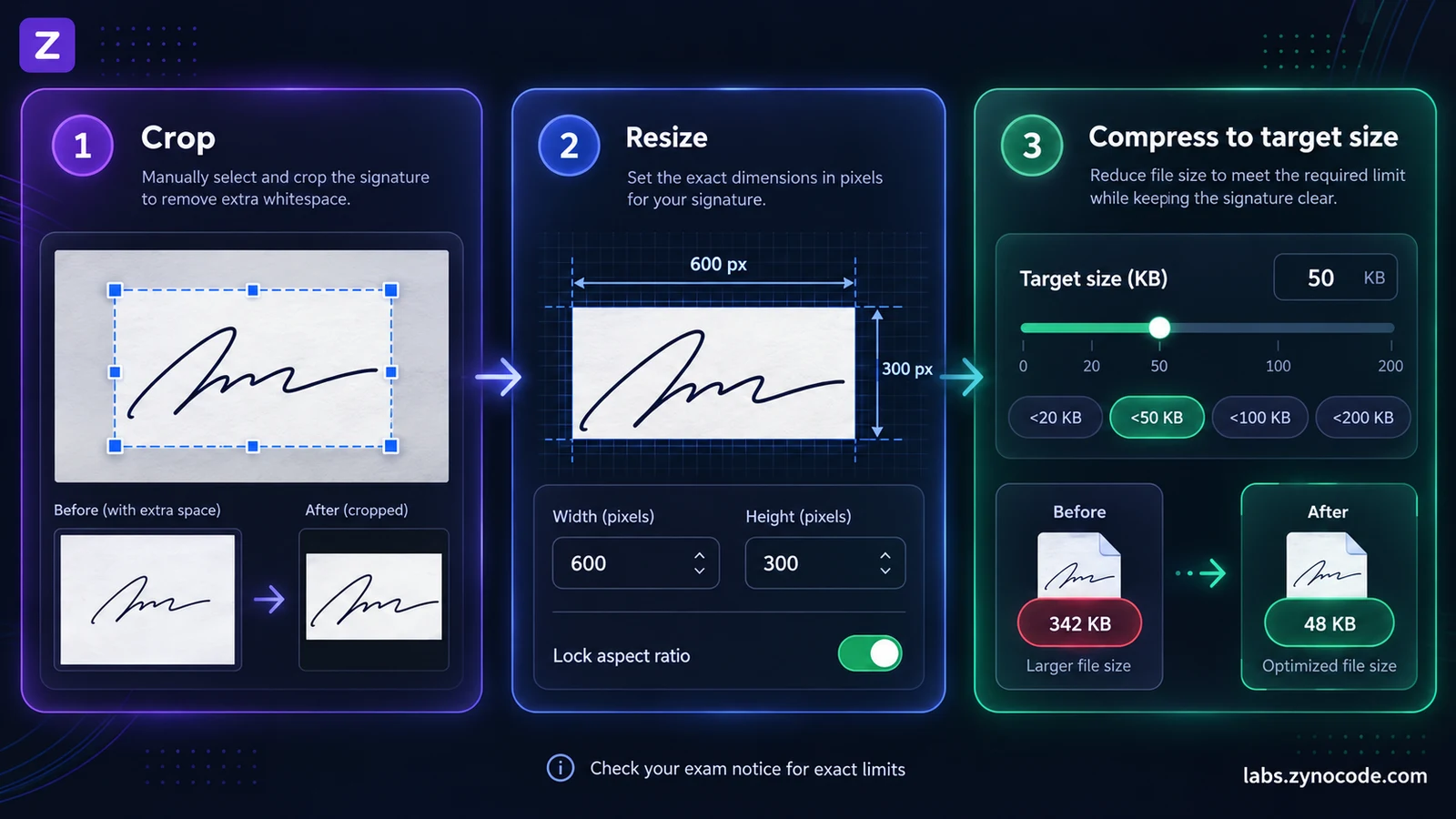
Achieving a compliant image requires three distinct stages: cropping out unnecessary space, resizing the pixel dimensions, and applying controlled compression. Follow this workflow on any desktop or mobile browser.
Step 1: Crop and Frame the Image
Before touching compression sliders, frame your image correctly. Taking a photo of your signature with a smartphone usually leaves vast empty desk space or shadow surrounding the text. Compressing that uncropped image forces the compression algorithm to waste bits encoding blank white space rather than ink strokes.
- Place your signature on clean, unlined white paper. Use a smooth black gel pen or ballpoint pen.
- Hold your phone camera directly above the paper in natural daylight to eliminate phone shadows.
- Open Image Cropper to remove blank margins surrounding the text, leaving only a small clean border around the handwriting.
- For portrait photographs, check the specific notice's framing rules. For example, UPSC requires that your face covers at least 75% of the photo area, whereas IBPS specifies a standard 4.5 cm × 3.5 cm frame.
Step 2: Resize to Exact Pixel Dimensions
Once your image is cropped, its raw dimensions might still be several thousand pixels wide. Attempting to compress a high-resolution image down to 20 KB forces extreme JPEG quantization, resulting in severe pixelation and artifacting.
- Check your examination notice for required dimensions (such as 200 × 230 pixels for IBPS photos or 140 × 60 pixels for signatures).
- Open Image Resizer and upload your cropped image.
- Enter the target pixel width and height. Keep the aspect ratio locked to prevent distorting your face or signature.
- Export the resized image. Shrinking dimensions naturally removes millions of redundant pixels, substantially reducing file size before compression starts.
Step 3: Compress to Target Kilobytes
Now that your image has the proper dimensions and framing, adjust the file weight to meet the portal's kilobyte range.
- For quick 50 KB limits, use our dedicated preset Compress Image to 50KB, or target a strict 20KB to 50KB photo range for banking and civil service forms.
- For candidate signatures, use the dedicated 10KB to 20KB signature resize tool or compress directly with Compress Image to 20KB. If an older portal caps signatures at 10 KB, use Compress Image to 10KB.
- For custom limits, open the main Image Compressor.
- Set the target size slider to a value comfortably below the upper limit. For a 50 KB maximum rule, set the target to 45 KB. For a 20 KB maximum rule, set the target to 18 KB.
- Ensure the output format is set to JPEG (
image/jpeg). - Click compress and download your optimized file.
To understand how lossy compression balances visual quality and kilobyte savings, see our comprehensive guide on how to compress images without losing quality.
Summary of Candidate Image Workflow:
1. Capture photo in bright daylight on plain white unlined paper.
2. Crop excess space using Image Cropper (focus on face or ink).
3. Resize dimensions using Image Resizer (e.g. 200×230 px or 140×60 px).
4. Compress to safe kilobyte target using Image Compressor (e.g. 45 KB or 18 KB).
5. Verify file size in file properties before final portal submission.
Step 4: Combine Supporting Documents into PDF
Certain examination portals require candidates to upload category certificates, educational marksheets, or identity proofs in PDF format under 500 KB (as mandated by IBPS in Annexure III).
If you have scanned multiple pages of certificates or identity proofs:
- Crop each scanned page to remove desk borders or background surfaces.
- Use Images to PDF to merge multiple JPG or PNG certificate scans into a single, compact PDF document.
- Ensure all text, serial numbers, and issuing authority stamps remain sharp and readable at 100% zoom.
Real Compression Benchmark: From 1.4 MB to Under 50 KB and 20 KB
To demonstrate how browser-based compression works in practice, we conducted an empirical test using our Image Compressor engine powered by client-side Web Workers and HTML5 canvas processing.
We generated a high-resolution test JPEG image simulating a candidate portrait:
- Original Dimensions: 3000 × 2000 pixels
- Original File Size: 1,489,453 bytes (1.42 MB / 1,454.54 KB)
We then executed two targeted compression passes matching standard Indian portal requirements:
Pass 1: Targeting Under 50 KB (Standard Candidate Photograph)
The compressor automatically scaled maximum dimensions to 1200 pixels and iterated JPEG quality down to meet the threshold:
- Starting File Size: 1,489,453 bytes (1.42 MB / 1,454.54 KB)
- Compressed File Size: 47,576 bytes (46.46 KB)
- Total Reduction: 96.8% file size savings
- Visual Clarity: The candidate face remained sharp with no visible distortion around facial features or eyes
Pass 2: Targeting Under 20 KB (Standard Signature Upload)
The compressor scaled maximum dimensions to 800 pixels and optimized the quantization matrix:
- Starting File Size: 1,489,453 bytes (1.42 MB / 1,454.54 KB)
- Compressed File Size: 20,191 bytes (19.72 KB)
- Total Reduction: 98.6% file size savings
- Visual Clarity: Text lines and ink strokes remained crisp and legible against a pure white background
Because 19.72 KB is safely below 20.0 KB (20,480 bytes) and 46.46 KB is comfortably below 50.0 KB (51,200 bytes), both files upload successfully without triggering portal rejection scripts.
How to Fix Common Signature Upload Problems
Candidate signatures frequently cause document upload rejections on government portals. Applying the following rules prevents common pitfalls:
1. The Gray Background Trap
When candidates take a photo of their signature inside a room with yellow lighting or weak bulbs, white paper appears gray or yellowish. Exam portals using automated contrast filters can reject gray images or produce unreadable admit card printouts.
- Solution: Always take the photograph near an open window during daylight hours. Ensure no overhead shadows fall across the paper. If the background remains tinted, increase brightness and contrast slightly in your phone photo editor before resizing.
2. Signing in Blue Ink or Gel Ink Smudges
Some notices (such as IBPS and UPSC) require black ink on white paper. Blue ink often appears faint after downsampling to small dimensions.
- Solution: Use a bold black pen. Avoid fountain pens that bleed into porous paper and produce feathered edges.
3. Signing in Block or Capital Letters
The IBPS notice states that signatures in CAPITAL LETTERS will not be accepted. Other exams may have similar rules, so read the signature section of your notice.
- Solution: Use your natural, running-hand signature as registered on your official identity documents (Aadhaar card, PAN card, or passport).
4. Over-Downscaling and Illegibility
If you compress a signature file to a very small size without checking the resulting image, individual letters can blur together into an unidentifiable smudge.
- Solution: After downloading your compressed file from Image Compressor, open it on your screen and zoom in to 100%. If you cannot clearly distinguish the letters, return to Image Resizer, increase the pixel width slightly, and re-compress to a safer kilobyte target.
Privacy First: Keep Candidate ID Documents Secure
Uploading sensitive personal documents—such as photographs, handwritten signatures, and educational certificates—to random web tools poses privacy risks. Many commercial conversion websites upload your files to remote servers where they may be stored indefinitely, indexed, or analyzed.
All image and PDF processing tools on Zynocode Labs run entirely client-side:
- Zero Server Uploads: Your photos and signatures never leave your personal computer or mobile device. All transformations are performed directly inside your browser memory using HTML5 Canvas and Web Workers.
- Offline Processing: Once the tool page is loaded in your browser, you can disconnect your internet connection and still crop, resize, and compress images seamlessly.
- No Data Retention: Because your files never touch an external server, no personal data, identity details, or signatures are logged, retained, or shared.
Conclusion and Next Steps
Meeting online application size rules does not require specialized graphic design software. By following a structured workflow—cropping excess white space, setting the correct pixel dimensions, and applying precise kilobyte compression—you can prepare compliant documents in under two minutes.
To get started on your application files:
- Use Image Cropper to frame your photograph and remove empty margins from your signature.
- Use Image Resizer to set the exact width and height demanded by your examination portal.
- For competitive exams, use our dedicated official presets: UPSC Photo & Signature, SSC CGL Signature, NEET Photo & Signature, JEE Main Photo & Signature, IBPS Photo & Signature, SBI PO Photo & Signature, CUET Photo & Signature, GATE Photo & Signature, CTET Photo & Signature, or CAT Photo & Signature.
- Use standard size presets: Compress Photo to 20KB–50KB, Compress Image to 50KB, Resize Signature to 10KB–20KB, or Compress Image to 20KB.
- If your portal requires certificates in PDF format, combine your scans using Images to PDF.
Frequently asked questions
Why do exam portals reject photos that are only 1 KB over the limit?+
Portals enforce strict byte ceilings in automated server upload scripts. While standard binary storage defines 1 KB as 1,024 bytes, some upload validators treat 1 KB as 1,000 bytes. Setting your compression target a few kilobytes below the official ceiling (such as 45 KB for a 50 KB limit) prevents boundary errors.
Can I sign using blue ink or capital letters for SSC and IBPS?+
Not for IBPS: its notice asks you to sign on white paper with a black ink pen and says signatures in CAPITAL LETTERS will not be accepted. UPSC also asks for black ink. Other exams set their own rules, so check the ink and signature instructions in your notice.
Why does my signature become blurry when compressed under 20 KB?+
Blurriness happens when candidates compress high-resolution phone photos containing wide blank margins. Crop away empty white margins first so the signature fills the frame. Then reduce pixel dimensions to the notice requirements before compressing.
What is the difference between image resizing and image compression?+
Resizing changes pixel dimensions, such as shrinking an image to 140 × 60 pixels. Compression reduces file size in kilobytes by optimizing color data and JPEG quantization while preserving the specified width and height.
Are my ID photos and signature safe when using an online compressor?+
With client-side tools like Image Compressor, your documents never leave your browser. All cropping, resizing, and compression execute locally inside your browser memory using HTML5 Canvas and Web Workers. No photos or personal data are ever uploaded to external servers.

Prashant Sharma · Founder & Technology Strategist
Prashant Sharma is the founder of Zynocode IT Solutions, specializing in web development, SEO tooling and generative AI workflows.